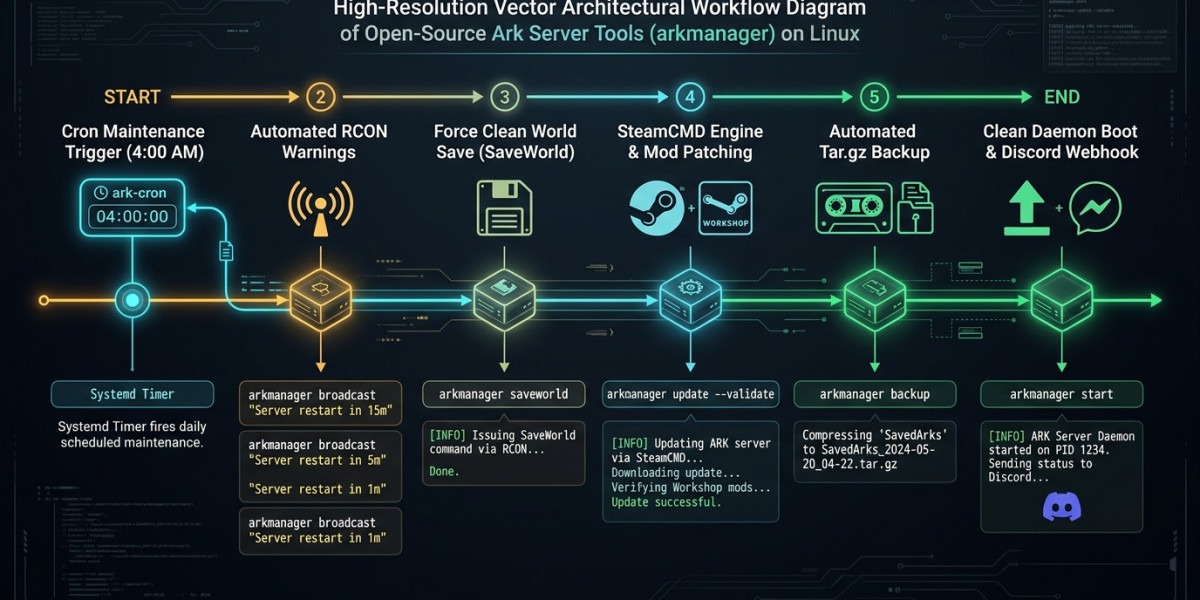

Ark Server Tools (arkmanager) is an open-source command-line utility that helps Linux administrators manage ARK servers through simple commands.
It works with SteamCMD and provides tools for server updates, backups, monitoring, and scheduled maintenance.
What Is Ark Server Tools?
Ark Server Tools is a Linux-based server management utility designed for ARK: Survival Evolved.
It helps administrators perform common tasks without manually entering long commands or managing every server process separately.
Its main features include:
- Starting, stopping, and restarting ARK servers.
- Checking server status.
- Updating game server files through SteamCMD.
- Creating backups of saved game data.
- Managing supported Steam Workshop mods.
- Scheduling maintenance through Linux cron.
1. Install Ark Server Tools on Linux
Connect to your Linux VPS through SSH and update the package list:
sudo apt update
Install common dependencies:
sudo apt install -y curl git lsof tar gzip bzip2 lib32gcc-s1
Ark Server Tools provides an installation script through its GitHub repository.
Review the installation instructions and script from the official project before running it:
https://github.com/arkmanager/ark-server-tools
After installation, check whether the command is available:
arkmanager --version
Installation requirements may vary depending on the Linux distribution and tool version.
2. Configure Ark Server Tools
Arkmanager commonly uses two configuration locations:
Global configuration
/etc/arkmanager/arkmanager.cfg
This file contains general settings such as installation paths and backup locations.
Server instance configuration
/etc/arkmanager/instances/main.cfg
This file controls the map, server name, ports, player limits, and other game settings.
Open the instance configuration:
sudo nano /etc/arkmanager/instances/main.cfg
Example settings:
serverMap="TheIsland"
ark_Port="7777"
ark_QueryPort="27015"
ark_RCONPort="27020"
ark_MaxPlayers="30"
Check the installed version's configuration examples before making changes. Keep administrator passwords secure and restrict access to configuration files.
3. Essential Arkmanager Commands
Arkmanager provides commands for everyday server administration.
Check server status
arkmanager status
Start the server
arkmanager start
Stop the server
arkmanager stop
Restart the server
arkmanager restart
Save the game world
arkmanager saveworld
Create a backup
arkmanager backup
Check for game updates
arkmanager checkupdate
Update the server
arkmanager update
These commands reduce the need to manage ARK processes and SteamCMD operations manually.
4. Automate ARK Server Updates
Regular updates help keep the dedicated server compatible with supported game clients.
Arkmanager can manage update operations through SteamCMD.
For a standard update, run:
arkmanager update
Some versions also support additional options for player warnings, backups, and mod updates.
Check the available options before combining them:
arkmanager update --help
Always maintain a recent backup before major updates or mod changes.
5. Schedule Automatic Backups with Cron
Linux cron can run maintenance commands at scheduled times.
Open the crontab for the account managing your ARK server:
crontab -e
For example, schedule a daily backup at 4:00 AM:
0 4 * * * /usr/local/bin/arkmanager backup >> /home/steam/ark_backup.log 2>&1
Make sure the executable path and log directory match your installation.
Test the backup command manually before enabling the scheduled job. Store important backups outside the game server whenever possible.
6. Manage Multiple ARK Servers
Arkmanager supports configurations for multiple server instances.
For example, you can create separate configuration files for The Island and Scorched Earth.
Each instance should have its own network ports and appropriate save settings.
This allows administrators to manage different maps individually while maintaining a shared Linux hosting environment.
7. Troubleshoot Common Arkmanager Problems
· Server fails to start: Check the game installation path, permissions, and startup logs.
· RCON connection fails: Verify the RCON configuration and confirm that the required TCP port is accessible only to trusted administrators.
· SteamCMD update fails: Check available disk space, network connectivity, and SteamCMD output.
· Backup fails: Confirm that the backup directory exists and the server account has permission to write to it.
· Scheduled task does not run: Check the cron configuration, executable path, and log file.
Frequently Asked Questions
Can arkmanager update ARK servers automatically?
Yes. Arkmanager supports update commands that can be scheduled using Linux automation tools. Test the update workflow before enabling unattended maintenance.
Does arkmanager support Steam Workshop mods?
It provides mod-management features for supported ARK installations. Compatibility depends on the tool version and mod configuration.
Can I manage multiple ARK maps?
Yes. Separate instance configurations allow administrators to manage multiple game servers.
Is arkmanager suitable for a Linux VPS?
Yes, provided the operating system is compatible and the VPS has sufficient CPU, memory, and storage for the ARK server workload.
Conclusion
Ark Server Tools simplifies ARK: Survival Evolved dedicated server management on Linux. It provides useful commands for updates, backups, restarts, and routine monitoring.
With proper configuration and scheduled maintenance, administrators can reduce repetitive work and manage their ARK servers more consistently. Regular backups and testing remain important for protecting game data.