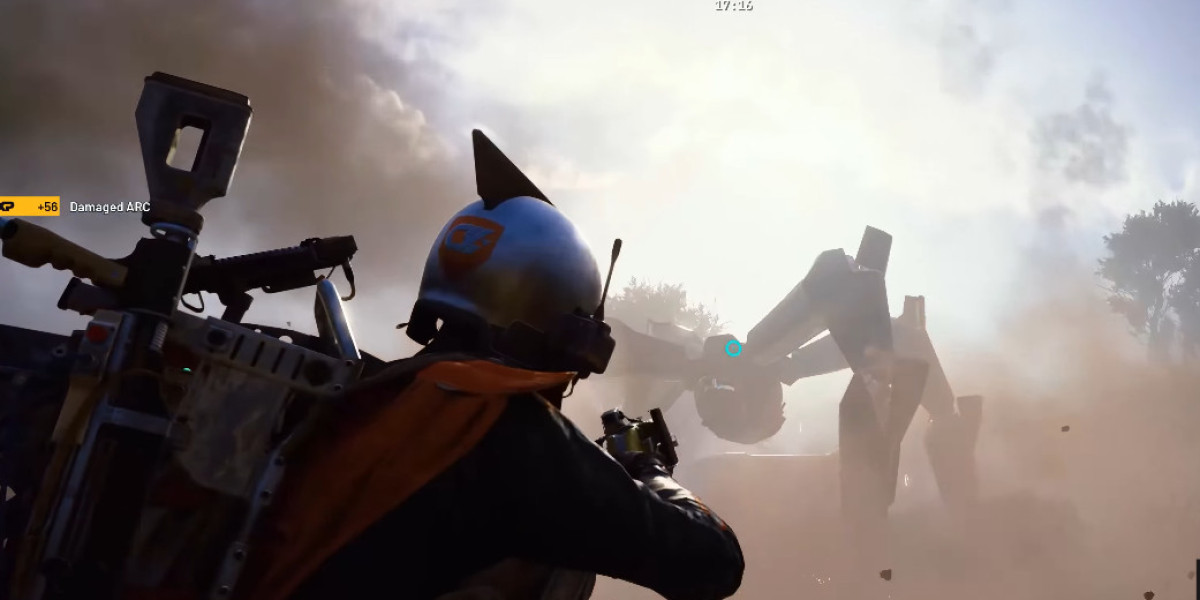

ARC Raiders players on Xbox have reported frustrating crashes, especially on the Xbox Series S. These problems can interrupt raids, force the game back to the console dashboard, and potentially put valuable ARC Raiders Items at risk. Embark Studios has acknowledged stability issues related to memory pressure and hardware limitations, and a permanent solution is being worked on. Until an official fix arrives, several practical adjustments may help reduce crashes and make gameplay more reliable.
Reduce Display Resolution to Improve Performance
One of the most effective workarounds is lowering your Xbox display resolution. Higher resolutions require additional processing resources, and reducing the output can help ease the workload on your console. This adjustment may be particularly useful for Xbox Series S players who experience repeated crashes during demanding gameplay.
To change the setting, open your Xbox console's Settings menu and select General, followed by TV & display options. If your display is configured for 4K or 1440p, switch to 1080p and test the game again. If the crashes continue, consider trying 720p temporarily.
Although a lower resolution may make the image look less sharp, a more stable experience can be worth the visual compromise. Try completing several raids with the adjusted setting before deciding whether further changes are necessary.
Clear Reserved Space After Game Updates
Game updates sometimes leave behind cached data that may contribute to unexpected behavior. Clearing the game's reserved space is another troubleshooting step worth trying when crashes begin after a patch or become more frequent without an obvious reason.
Start by pressing the Xbox Guide button and opening My games & apps. Select See all, highlight ARC Raiders, and press the Menu button on your controller. Choose Manage game and add-ons, then open Saved data and locate Reserved space. Select the option to clear it.
Keep in mind that reserved space is different from your personal save data. Make sure you select the correct entry and avoid deleting your actual saved progress. After clearing the reserved space, restart the game and check whether performance improves.
Reset Persistent Storage and Restart Your Xbox
Temporary system data can sometimes contribute to software problems, particularly when a game repeatedly crashes while loading a busy area. Clearing the console's persistent storage and performing a full power cycle may help resolve issues caused by temporary data or an incomplete shutdown.
To clear persistent storage, navigate to Settings, then Devices & connections, followed by Blu-ray and Persistent storage. Choose Clear persistent storage if the option is available on your console.
Next, perform a complete power cycle. Hold the physical power button on the front of your Xbox for approximately ten seconds until the console shuts down. Disconnect the power cable for about one minute, reconnect it, and turn the console back on.
Once the system restarts, launch ARC Raiders and test the areas where crashes previously occurred. This process will not solve every underlying optimization issue, but it can eliminate some temporary system-related problems.
Disable Background Recording and Voice Chat
Background features can consume resources or introduce additional activity while you're playing. Disabling automatic game clip recording is a simple way to reduce unnecessary background tasks during demanding sessions.
Open Settings, select Preferences, and navigate to Capture & share. Turn off automatic background clip recording or other capture options that you do not need. The exact options may vary depending on your Xbox system software.
Voice communication is another feature worth testing. Some players have reported performance hitches associated with in-game voice channels, particularly when playing with a squad. Try using Xbox Party Chat instead of ARC Raiders' proximity or squad voice chat to see whether the problem improves.
Change one setting at a time whenever possible. This makes it easier to identify which adjustment helps and avoids unnecessary changes to your usual gaming setup.
Test Each Fix Before Returning to Long Raids
After applying these workarounds, start with a short session and visit the locations where crashes have happened most often. Pay attention to loading transitions, busy combat encounters, and areas that previously caused the game to return to the dashboard. If one adjustment makes a noticeable difference, keep it enabled while monitoring the game's stability.
You should also install official game updates when they become available, since developer patches may address problems that temporary workarounds cannot fully resolve. Avoid assuming that any single adjustment guarantees a permanent fix, and remember that results can vary between Xbox models and individual setups.
Protect Your Progress With a More Reliable Setup
Frequent crashes can make every expedition more stressful, especially when you're carrying valuable loot or trying to complete objectives with teammates. Lowering the resolution, clearing temporary data, restarting the console, and disabling unnecessary background features are practical steps to try while waiting for further optimization improvements. Once your game runs more consistently, you can spend more time exploring, collecting resources, and preparing for tougher encounters. Players looking to improve their equipment and prepare for future expeditions can also explore options to buy ARC Raiders Gear and build a loadout suited to their preferred playstyle.