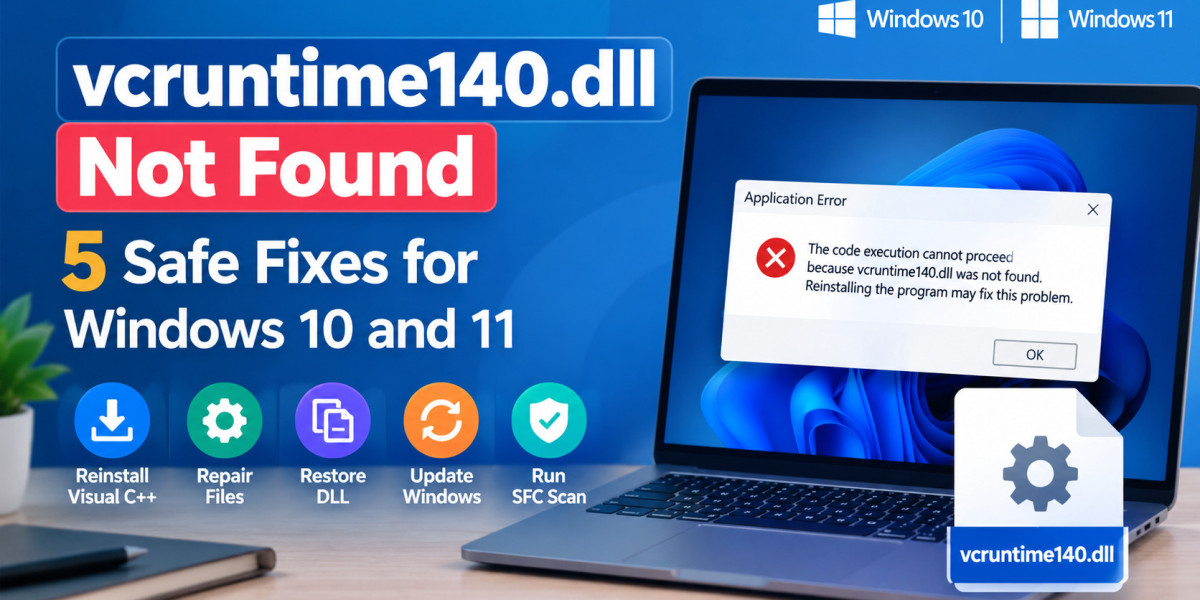

You double-click an app you use every day, and instead of opening, Windows shows a message: vcruntime140.dll not found. It's frustrating, but it rarely means your PC or the app is beyond saving. In most cases, a small Microsoft component is missing or damaged, and the fix takes a few minutes.
Why Does This Error Appear?
VCRuntime140.dll is a runtime library that several Windows programs need to run. It is included in the Microsoft Visual C++ Redistributable. If the software doesn't install, no matching software is available, and the program will not run.
Common causes include:
The Visual C++ Redistributable was not installed.
The run-time files are damaged or missing files
If you have a 32-bit app, you require the x86 package even for 64-bit Windows.
The app is damaged during its own installation. Damage to the app during installation.
Windows system files have been corrupted.
5 Safe Fixes
1. Install the latest version of Visual C++ Redistributable. Get the latest v14 package supported by Microsoft from the official website. Use the one that is compatible with your app (x86, x64, or ARM64). If you still have any doubts, try installing both x86 and x64 on a 64-bit PC and restart.
2. Fix up the current installation. In Settings > Apps > Installed apps, look for the Microsoft Visual C++ Redistributable app and select Modify or Repair. Please restart and test the app once more.
3. Reinstall the application that is affected. If one program fails to install, remove the program and reinstall it from the developer's official site.
4. Install Windows updates. Go to Settings > Windows Update and install any updates. Updates will not replace the runtime, but will address compatibility issues that can prevent apps from launching.
5. Repair Windows system files. If several apps are failing, open Command Prompt as administrator and run DISM /Online /Cleanup-Image /RestoreHealth, followed by sfc /scannow. Restart when both finish.
Important: Never download a single vcruntime140-dll file from a random DLL website. Those files may be outdated or unsafe, and replacing one file doesn't fix the underlying dependency.
Protect Your Data While You Troubleshoot
Running repair commands, reinstalling apps, and changing system settings is usually safe. Still, any time you modify Windows, there's a small risk that something goes wrong: a failed repair, a removed app folder, a formatted partition, or an accidental deletion. Before you start, back up your important files. If something does go missing afterward, stop writing new data to that drive and use a recovery tool as soon as possible.
A Reliable Safety Net: Datarecovee
Here's where Datarecovee can come in. Datarecovee Windows Data and Partitions Recovery Tool is designed to recover deleted and permanently deleted files as well as lost partitions from Windows systems and removable media such as USB drives and SD cards. It enables you to see the recovered files prior to restoration and choose what you require. It also has sector-level scan settings for damaged drives.
Will not correct the DLL error. Do that by following the steps above. Whereas, if you ever find yourself with lost files as a result of your troubleshooting, Datarecovee provides you with an easy and user-friendly solution to restore your lost files. You can use the free version to test out the backup before paying for it – so that you know what data can be recovered before upgrading.
Find out more at datarecovee.com.
Source URL: https://datarecovee.com/knowledge-base/vcruntime140-dll-not-found/