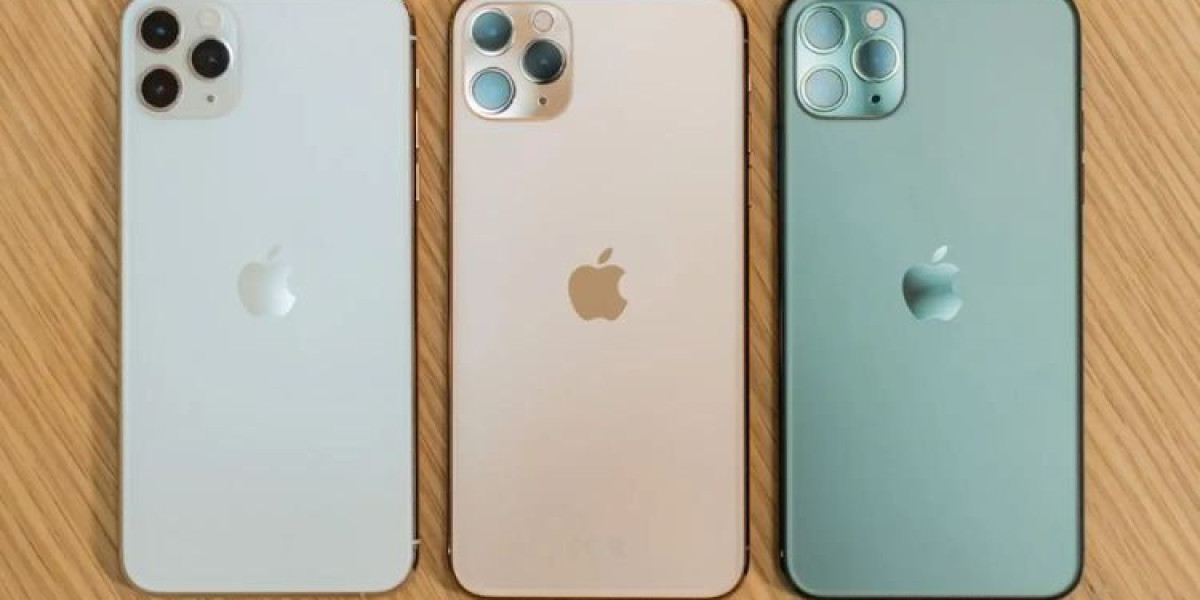

The Australian market for pre-owned smartphones has exploded over the past few years, and there's good reason for it. Savvy buyers are realising they can snag premium devices at a fraction of the retail price, but here's the catch: not all pre-owned iPhones are created equal. When you're considering a second hand iPhone Australia purchase, you're making a significant investment—even at discounted prices—and the last thing you want is to end up with a device that's ready for the recycling bin.
I've seen countless people get burnt by overlooking critical inspection points, particularly when it comes to battery health. The battery is the heart of your iPhone experience, yet it's one of the most commonly degraded components in used devices. Understanding how to properly assess battery condition, along with other vital hardware and software elements, can mean the difference between scoring an excellent deal and throwing money down the drain.
What makes this even more crucial is that battery replacement isn't cheap, and depending on your model, it can set you back anywhere from $99 to $149 through Apple's official channels. That's a substantial chunk of your savings wiped out before you've even started using your "bargain" purchase. Let's dive into exactly what you need to know to inspect a pre-owned iPhone like an absolute professional.
Why Battery Health Matters More Than You Think
Your iPhone's battery degrades with every charge cycle—that's just physics. Apple designs their batteries to retain up to 80% of their original capacity at 500 complete charge cycles under normal conditions. But here's what most people don't realise: that degradation isn't linear, and it accelerates based on how the previous owner treated the device.
A well-maintained iPhone that's two years old might still have 85% battery health, whilst a one-year-old device that's been consistently fast-charged in hot environments could be sitting at 75% or lower. This matters because once you drop below 80%, you're looking at noticeably reduced performance, unexpected shutdowns, and the need for midday charging sessions.
According to data from Battery University, lithium-ion batteries—which power all iPhones—lose approximately 20% of their capacity after 1,000 full charge cycles. However, environmental factors can cut this lifespan in half. Exposure to high temperatures, deep discharge cycles, and cheap third-party chargers all accelerate degradation exponentially.
Accessing Battery Health Information: Your First Line of Defence
Before you even meet the seller, you should request battery health information. Here's how to check it properly:
Navigate to Settings > Battery > Battery Health & Charging. This screen reveals two critical metrics: Maximum Capacity and Peak Performance Capability. Maximum capacity shows the battery's current capacity relative to when it was new. Anything above 85% is considered good for a device under two years old, 80-85% is acceptable, and below 80% means you should negotiate hard on price or walk away.
Peak Performance Capability tells you if the iPhone has experienced unexpected shutdowns. If you see a message stating "Your battery's health is significantly degraded," that's a massive red flag. The device has already started throttling performance to prevent shutdowns, meaning the previous owner pushed this battery well beyond its comfortable limits.
But don't stop there. Check the battery's cycle count through third-party apps like coconutBattery (if connecting to a Mac) or 3uTools. These tools provide deeper insights that Apple's native settings don't show. A cycle count above 800 on a two-year-old device suggests heavy usage, whilst anything over 1,000 cycles means that battery is living on borrowed time regardless of what the percentage shows.
Physical Inspection: What Your Eyes Can Tell You
Battery health metrics only tell part of the story. Physical inspection reveals issues that software can't detect. Start with the screen. Place the iPhone face-down on a flat surface. Does it sit completely flat, or does it rock slightly? A raised screen or bulging back panel indicates battery swelling—an immediate deal-breaker that poses safety risks.
Examine the charging port closely with a torch. Corrosion, bent pins, or debris buildup suggests the device has been exposed to moisture or poor charging practices. Check all physical buttons for responsiveness. Mushy or stuck buttons often indicate internal damage or poor-quality repairs.
Inspect the device's seams carefully. Modern iPhones use precision engineering with extremely tight tolerances. Any gaps between the screen and frame, misaligned buttons, or uneven spacing suggest the device has been opened—possibly for unauthorised repairs using substandard components. Aftermarket batteries rarely match genuine Apple batteries in longevity or safety.
Look for signs of liquid damage, even if the seller claims the device is pristine. Remove the SIM tray and shine a light inside. Red or pink liquid contact indicators (LCIs) mean the device has been exposed to moisture. Apple strategically places these indicators throughout the device, and triggered LCIs void warranties and often predict future failures.
Software Checks: Digging Deeper Into Device History
Battery health and physical condition are crucial, but software tells you about the iPhone's past life and potential future problems. Start by checking the device's IMEI or serial number on Apple's Check Coverage website. This verifies the device's authenticity, shows its exact model and configuration, and reveals if it's still under warranty or covered by AppleCare+.
More importantly, check if the device is activation locked. Ask the seller to go to Settings > [their name] > Find My and disable Find My iPhone in your presence. If they can't or won't do this, walk away immediately. An activation-locked iPhone is virtually worthless—it's locked to the previous owner's Apple ID and can't be activated without their credentials.
Run comprehensive tests on all features. Open the Camera app and test both front and rear cameras, including Portrait mode, Night mode, and video recording. Blurry images or focus issues often indicate damaged camera modules. Test Face ID or Touch ID extensively—biometric failures suggest water damage or poor-quality screen replacements.
Check wireless connectivity thoroughly. Connect to Wi-Fi and run a speed test, then test cellular data, Bluetooth pairing with various devices, and GPS accuracy using Maps. Connectivity issues are notoriously difficult and expensive to repair, often requiring motherboard-level intervention.
Testing Performance: Beyond the Surface
A healthy battery means nothing if the iPhone's processor can't deliver reliable performance. Download a benchmarking app like Geekbench 5 and run a complete test. Compare the results against published benchmarks for that specific model. Significantly lower scores indicate thermal throttling, potential malware, or hardware degradation.
Monitor the device's temperature during intensive tasks. Play a graphics-heavy game for 10-15 minutes or record 4K video. The device should get warm but never uncomfortably hot. Excessive heat generation points to battery problems, compromised thermal management, or failing components.
Test the speakers at various volume levels. Distortion, crackling, or imbalanced audio between the top and bottom speakers suggests speaker damage or water exposure. Audio issues are among the most commonly overlooked problems in used iPhones, yet they significantly impact daily use.
Storage and Performance Optimisation
Check the device's storage situation in Settings > General > iPhone Storage. Look for how much space is available and what's consuming storage. A device that's constantly at capacity will perform sluggishly regardless of battery health. More concerning is evidence of jailbreaking or unauthorised modifications, which appear as unusual apps or system files you don't recognise.
Examine installed apps carefully. An excessive number of apps, particularly VPN services, security apps, or profile configurations you don't recognise, could indicate the device was used for purposes that accelerated wear or compromised security. Factory reset capability is crucial—if the seller hasn't already wiped the device, ensure they can do so and that you can set it up as new.
Red Flags That Should Make You Walk Away
Certain warning signs should immediately end your interest, regardless of price. If the seller refuses to meet in person or insists on shipping first, that's a scam waiting to happen. Legitimate sellers have nothing to hide and should be comfortable demonstrating the device's functionality.
Battery health below 75% on any device isn't worth your time unless you're prepared to immediately invest in a replacement. Third-party battery replacements, even high-quality ones, rarely match genuine Apple batteries in longevity or performance. The cost savings evaporate quickly.
Any iPhone sold without its original packaging, accessories, and proof of purchase should raise suspicions. Whilst not definitive proof of problems, legitimate resellers and private sellers typically maintain these items. Their absence often indicates the device's questionable provenance.
Pricing that seems too good to be true usually is. Research current market rates for the specific model, storage capacity, and condition you're considering. If someone's offering a device for 40-50% below market rate, there's a reason—usually a significant defect they're not disclosing.
Understand more: https://valuegadgets.com.au/
The Professional Inspection Checklist
Create a systematic inspection routine you follow religiously for every potential purchase. Start with documentation verification: check the IMEI against blacklist databases, verify the model matches what's advertised, and confirm activation lock status.
Move through physical inspection: examine for swelling, check all ports and buttons, verify screen condition with a white background to spot dead pixels, and test Face ID or Touch ID multiple times. Document everything with photos if possible.
Complete software verification: check battery health thoroughly, run performance benchmarks, test all connectivity features, verify camera functionality in various lighting conditions, and ensure all sensors work properly using diagnostic apps.
Finish with functional testing: make a test call, send messages, browse the web on both Wi-Fi and cellular, play audio through speakers and headphones, and charge the device to verify charging works correctly.
Negotiating Based on Your Findings
Armed with thorough inspection results, you're positioned to negotiate intelligently. Battery health between 80-85% justifies a 10-15% price reduction from market rate. Below 80% should command 20-30% off, and anything lower than 75% needs a 40-50% discount to account for immediate battery replacement costs.
Minor cosmetic damage typically warrants 5-10% off, whilst significant scratches, dents, or screen damage should reduce the price by 15-25%. Functionality issues like problematic Face ID, camera defects, or speaker problems deserve substantial discounts of 30-50%, as these repairs are expensive and sometimes impossible without Apple's intervention.
Making the Smart Purchase Decision
Understanding battery health and comprehensive device inspection isn't just about avoiding bad purchases—it's about maximising value and ensuring your pre-owned iPhone delivers years of reliable service. The Australian market offers outstanding opportunities for savvy buyers who know what to look for, but success requires diligence, patience, and a willingness to walk away from questionable deals.
Take your time, use this guide as your roadmap, and never feel pressured to complete a purchase. The right device at the right price will come along, and when it does, you'll have the confidence and knowledge to recognise it immediately. Your wallet—and your future self—will thank you for the extra effort.